Ajout du support des BMS de chez JKong BMS

BMS de la marque JIKONG BMS

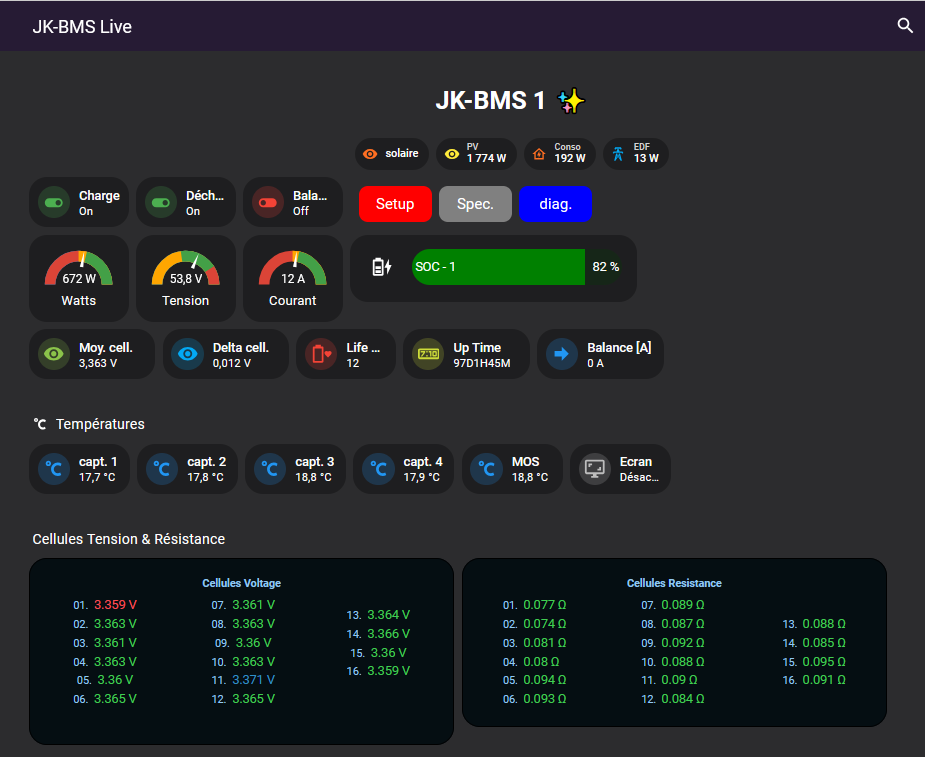
Tout prochainement nous allons introduire le support des JK-BMS dans Smartphoton.

Il va être possible de contrôler ceux-ci en filaire via leur port RS485.

Plusieurs JK peuvent être ainsi contrôlés depuis votre domotique Home Assistant.

Actuellement seule une connexion en Bluetooth et ESP32 était possible.

Même les nombreux paramètres seront modifiables à distance !

Des automatismes pouront être mis en fonction, tel que allumer l’écran pendant quelques minutes lors de la détection de votre arrivée 😉

Restez connectés pour connaître le moment de la livraison de ce nouveau logiciel.

Regardez régulièrement sur le forum http://smartphoton.ch/forum

Voici une « preview »:

Version 4.0 disponible en libre service

Voilà la version 4.0 est là

Celle-ci est disponible:

  • pour un micro ordinateur Raspberry Pi
  • comme machine virtuelle sous VirtualBox
  • comme machine virtuelle sous ProxMox (nouveauté)

Les nouveautés marquantes sont:

  • Possibilité de mettre à jour le logiciel à distance et à la demande, voir cet article
  • Possibilité de gérer 16 batteries Pylontech
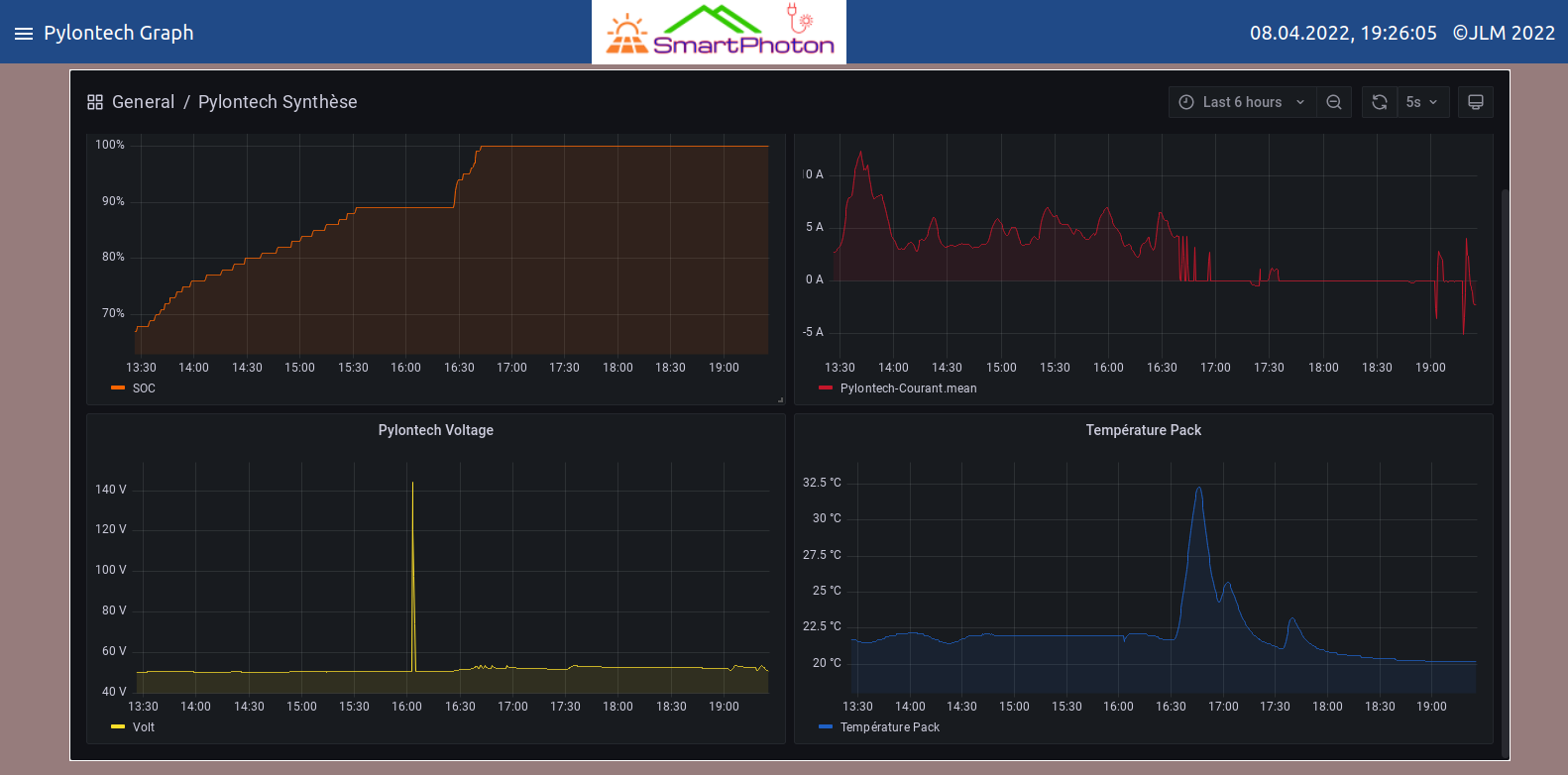
  • Graphiques professionnels concernant vos Pylontech
  • Possibilité de communiquer avec son onduleur via Ethernet filaire ou Wifi via un adaptateur Elfin. voir le sujet sur le forum
  • Connexion chez Enedis pour récupérer ses données Linky. Voir le sujet sur le forum
  • Refonte complète du menu « system », maintenant il est possible d’avoir 2x le même câble série et l’assigner à l’onduleur et à la(les) batterie(s) Pylontech. Voir cet article
  • Un menu ‘Debug’ qui permet de vérifier diverses fonctions
⚠️ Pensez à faire une sauvegarde de votre base de données pour pouvoir la restaurer après la nouvelle version. Il est bien de faire l’installation sur une nouvelle carte SD ou SSD disque au cas ou il y aurait des soucis.

😇 P.S:  Si vous êtes satisfait de ce logiciel, pensez à faire un don (pour ceux pour qui cela n’est pas fait !)

J’en ai par exemple besoin vis-a-vis de mon hébergeur qui suis l’augmentation de l’énergie. Cela me permet d’acheter et expérimenter d’autres matériels et solutions.

Merci à tous 🙏

Florilège de captures écrans et animations:


un boîtier convertisseur WiFi – RS232 pour nos onduleurs

I have integrated the possibility to put a WiFi – RS232 converter box on our inverters.

Smartphoton can now manage wired or wireless connections

For what reasons / advantages ?

  • There are so many kinds of cables with different chipsets that sometimes the connection between the inverter and the Raspberry is long and tedious to set up
  • You can put the Pi wherever you want in the house. No more need for a short cable between the inverter and the Raspberry
  • My software can now run virtualized in any PC and retrieve or act on the inverter without any cables. The PC can run under Linux or Windows
  • With this solution, the data does not go on the Chinese servers. Everything stays local!
  • You can install several boxes. For example a 2nd one to manage the Pylontech batteries

I propose you to watch a short demo of my installation at this place

[yotuwp type= »videos » id= »Y3zSak8wY4k » ]

2 câbles série de marque identique ! comment les reconnaître sous Linux ?

Comment déterminer quel câble est relié à quel appareil ?

Oui, lorsque l’on a un onduleur et des batteries style Pylontech, il faut bien les relier au Raspberry pour pouvoir les commander.
Mais que se passe-t-il si on a 2 fois le même câble ?

Eh bien Linux va être incapable de savoir qui est qui si on ne l’aide pas.
Dans la version actuelle de Smartphoton, je contrôle les Vendeur ID et le Product ID. Si ce sont 2 câbles différents, les valeurs seront différentes.
Pour exemple :

chez moi j’ai 2 câbles (pour être précis, 2 chipsets) différents, donc aucun soucis pour moi de déterminer qui est connecté à qui.
Cela se fait dans le menu «System»

Le câble avec l’ ID 10c4:ea60 est le câble qui est relié à l’onduleur
Le câble avec l’ ID 067b:23a3 est le câble qui est relié aux batteries.
Absolument aucunes ambiguïtés ! Facile !

Maintenant prenons l’exemple qui coince. Cas de figure réel !!!
L’utilisateur à 2 câbles série totalement identiques. Voici ce que voit Linux de ces 2 câbles (commande lsusb) :

lsusb
Bus 002 Device 001: ID 1d6b:0003 Linux Foundation 3.0 root hub
Bus 001 Device 004: ID 067b:23a3 Prolific Technology, Inc. ATEN USB to Serial Bridge
Bus 001 Device 003: ID 067b:23a3 Prolific Technology, Inc. ATEN USB to Serial Bridge

Bus 001 Device 002: ID 2109:3431 VIA Labs, Inc. Hub
Bus 001 Device 001: ID 1d6b:0002 Linux Foundation 2.0 root hub

On voit que les 2 câbles ont exactement la même identification. Donc impossible de déterminer qui est qui. Voilà le problème posé.

En utilisant la commande suivante ls -l /dev/serial/by-path/
La réponse est la suivante :

4 jun 11:47 platform-fd500000.pcie-pci-0000:01:00.0-usb-0:1.2:1.0-port0 -> ../../ttyUSB0
4 jun 12:04 platform-fd500000.pcie-pci-0000:01:00.0-
usb-0:1.3:1.0
-port0 -> ../../ttyUSB1

On voit qu’il y a 2 interfaces, 1 sur le path usb-0:1.2:1.0 qui est donc l’interface ttyUSB0 et l’autre sur le path usb-0:1.3:1.0
Ce qui du coup me donne l’information de qui est où, Ghislain m’avait dit que l’onduleur était sur ttyUSB1, donc les batteries seront sur ttyUSB0.

Maintenant, il faut fixer ceci pour que lors du prochain redémarrage, cela soit toujours le cas !

Donc sur Linux on utilise des fichiers spéciaux qui donnent ce genre d’ordres.
Il s’agit du fichier /etc/udev/rules.d/99-usb-serial.rules
par exemple, dans celui-ci, j’ai introduis les lignes sous cette forme :

SUBSYSTEM=="tty",ENV{ID_PATH}=="platform-fd500000.pcie-pci-0000:01:00.0-usb-0:1.2:1.0",SYMLINK+="tty-pylontech"
SUBSYSTEM=="tty",ENV{ID_PATH}=="platform-fd500000.pcie-pci-0000:01:00.0-usb-0:1.3:1.0",SYMLINK+="tty-onduleur"

tty-onduleur et tty-pylontech sont utilisés dans mon programme justement pour m’affranchir des ports USB donnés aléatoirement par Linux.

Du coup lorsque Linux démarre je vais avoir ceci avec la commande
suivante ls -l /dev/tty-onduleur et ls -l /dev/tty-pylontech

4 jun 14:36 /dev/tty-pylontech -> ttyUSB0
4 jun 14:36 /dev/tty-onduleur -> ttyUSB1

Et donc Smartphoton va pouvoir gérer à la fois l’onduleur et les batteries sans confusions. Ce qui était le but à atteindre Smile

Pour l’heure, je dois éditer le fichier en mode manuel, mais je regarderai pour que cela soit possible pour l’utilisateur par la suite.

C’était un long exposé, mais je pense qu’il sera utile pour de nombreux «Linuxien» qui comme moi ont lutés pour trouver ce genre d’informations assez obscures tout de même.

Pour information importante, j’ai trouvé la variable {ID_PATH} ci dessus via cette commande :

sudo udevadm info --query=all –name=/dev/ttyUSB0
et
sudo udevadm info --query=all –name=/dev/ttyUSB1

Qui me donne les résultats suivants. Je les mets en comparatifs dans un tableau pour lecture facilitée


Batteries Pylontech and smartphoton

I bought 2 Pylontech batteries to replace my lead acid battery pack that was failing.

It’s night and day in terms of discharge capacity and durability.

My inverter doesn’t know these batteries, it doesn’t have an intelligent link with them to be able to discuss their state and thus manage them as well as possible like other inverters a little more expensive do.

So, I tried to do it, I connected the serial output « Console » to a USB port of my Pi.


I had to build a cable and learn to talk to the Pylontech BMS (Battery Management System). This is now done.

I will now study the behavior of my inverter-battery pair to see how to dynamically adapt the parameters of the inverter according to the values of the batteries.

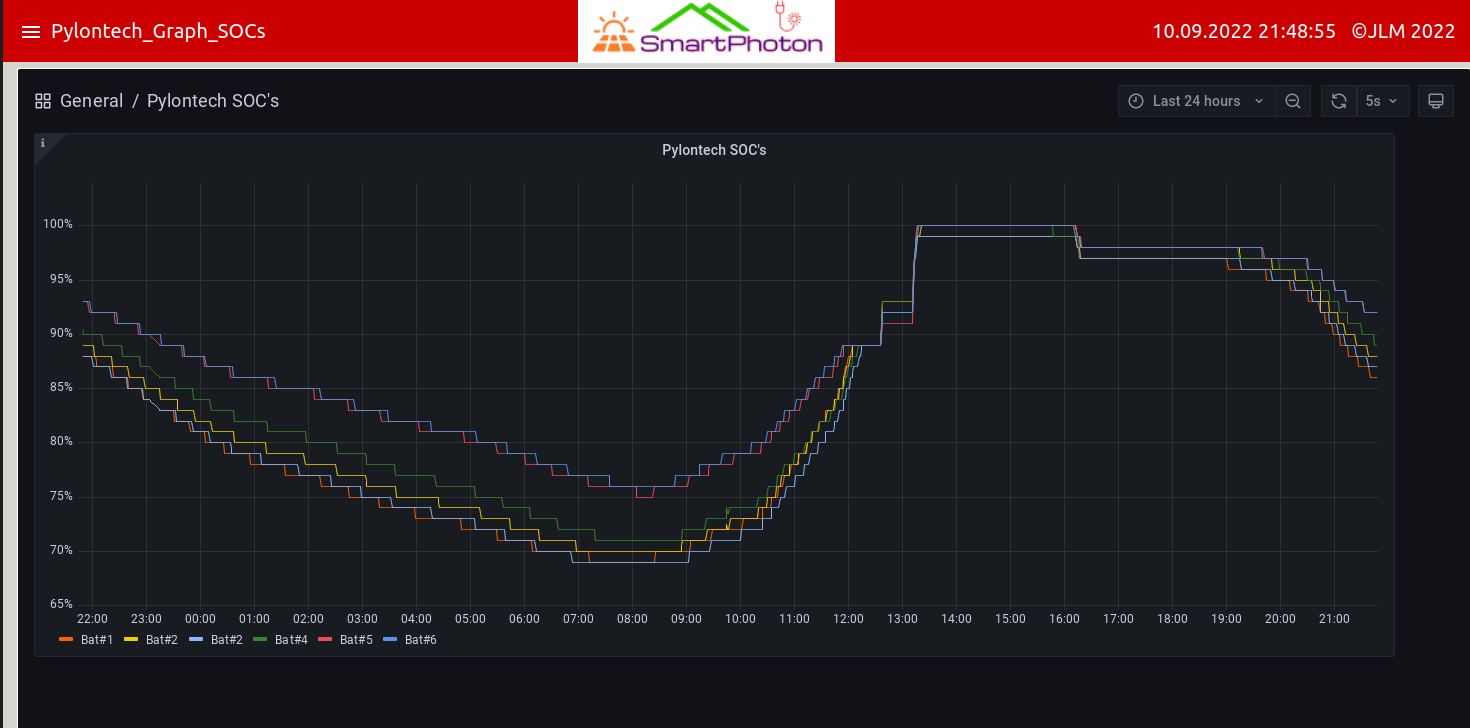
In particular the SOC (State Of Charge) indicator of the batteries. This tells us what is the real remaining capacity in the batteries and not an estimate.

So I could play on the parameters 01 – 12 – 13 – 27 – 29 in an automatic way and I wish it the most efficient. Here is a graph that now allows us to understand how these batteries behave:

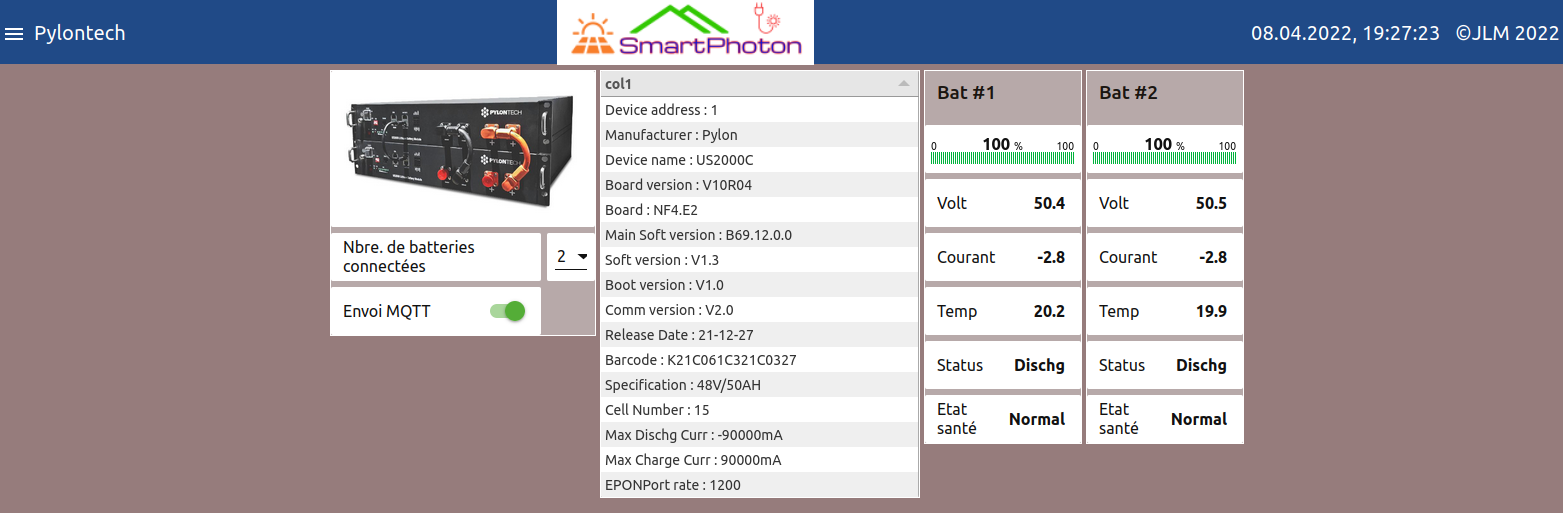
And here is the information and battery management page.

In addition, all important data is accessible from outside the software via an MQTT broker for integration into existing home automation systems.

Just go to the forum to see the whole process and find more details and information!

And also you can see my video here

[yotuwp type= »videos » id= »I_I5dX695J0″ ]

Zigbee integrated in smartphoton version 3

Here we are, version 3 is coming.

The main new feature is:

To be able to remotely control via a 4 way switch the parameter 01.

Namely to switch it to UTI / SOL / SBU mode

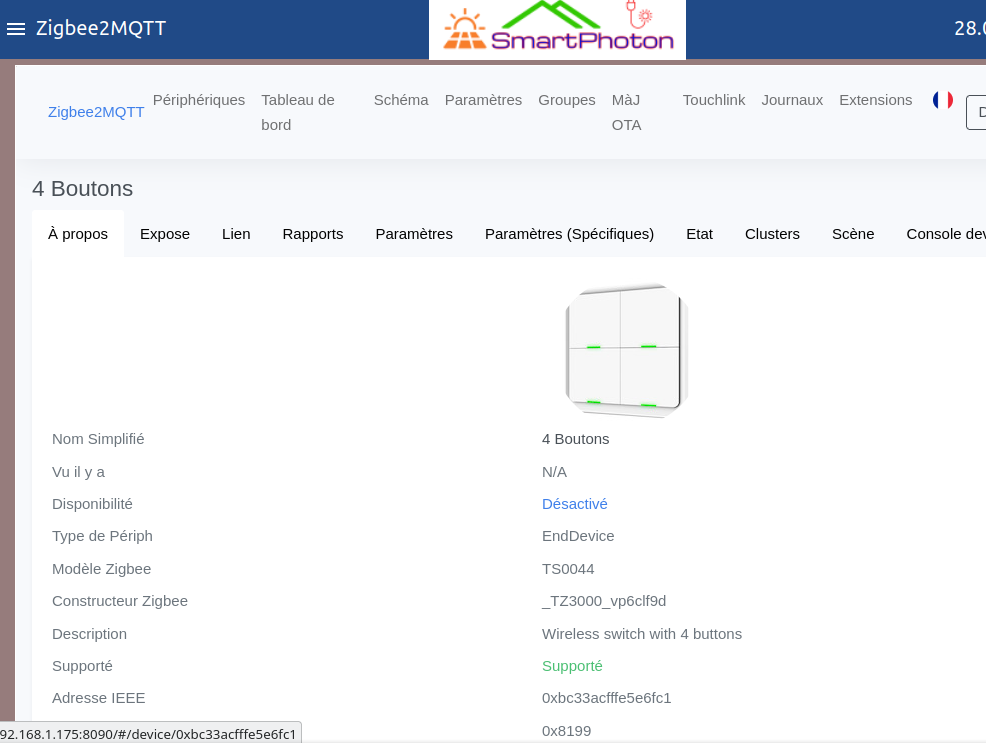
For this I integrated a Zigbee gateway in smartphoton.
Yes, that’s it, the home automation naturally integrates the inverter management software. It is an obvious marriage.

Jean was the first to test this solution, he often asked me for this feature. I hope he will be happy with it.

You can watch below this article which demonstrates the usefulness of this feature

Demo modification of parameters via 4-way wireless switchDémo modification de paramètres via interrupteur sans fil 4 voies

I used the wonderful software of zigbee2MQTT. Thanks to them for providing us with this kind of software!

In concrete terms, this is what will be required:

• 1 Zigbee switch of this type

• A Zigbee gateway to plug into the Raspberry

And that’s it!

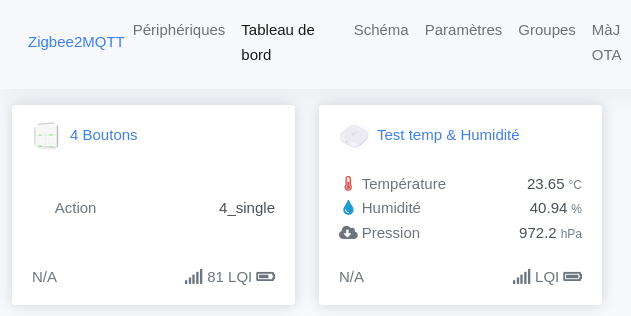
In the software you can start and manage your Zigbee network via a dedicated page

A new video online!

A new video online! ! 📹

I decided to start explaining how to use Nodered to do home automation. This one deals with a relatively simple topic like gradually turning on/off an LED 💡

I’ve had quite a few requests along these lines, how do you do this or that?

So I’m taking the plunge by making this 1st video with a more polished presentation this time. But still artisanal, because it is my trademark.

You’ll see that I’m far from inverters on this one, but, it’s thanks to this kind of exercises that I was able to make the smartphoton software that you know now to use it at home.

Don’t hesitate to give me feedback if you like it or not in the comments below and/or on the Youtube page

[yotuwp type= »playlist » id= »PLJdQN_TTVjJ18jBjd4X6wczOa4UJSyKSq » ]